

How to Manage GeoDirectory Listings with AI (Create, Update & Delete Listings)
Managing a growing GeoDirectory site can involve repetitive work: creating place listings, changing publication status, checking existing entries, removing test content, and confirming what happened after an action. GeoBuddy AI provides an AI-assisted way to manage these listing tasks through an MCP-connected local AI agent.
With the appropriate write permissions enabled, directory owners can use natural-language requests to create listings, update their status, move them to the trash, or permanently delete them. This approach is designed for WordPress sites that use the GeoDirectory plugin.
Why Use AI for Managing GeoDirectory Listings?
Managing a GeoDirectory listing can be time-consuming, especially if you have a large number of listings to handle. This is where AI comes into play. With GeoBuddy AI, you can automate various tasks, saving you hours of manual work. Here are some key benefits:
- Automate the creation of new listings
- Edit and update existing listings instantly
- Manage directory content faster
- Improve your workflow with AI automation
- Reduce the risk of human error
What AI-powered GeoDirectory listing management can do
GeoBuddy AI is a premium add-on focused on allowing AI tools to interact with a GeoDirectory website through MCP, short for Model Context Protocol. The AI agent can retrieve directory information and, when granted write access, perform listing management actions.
The supported listing workflow includes:
- Reviewing directory site details, including enabled post types, directory configuration, categories, locations, map settings, and listing counts.
- Listing existing entries, including published and draft listings.
- Creating new listings with required GeoDirectory fields such as title, description, and category.
- Changing listing status, such as publishing a draft or moving a published entry back to draft.
- Updating directory content through AI-assisted listing management.
- Moving listings to the trash as a reversible removal step.
- Reviewing activity logs to see who performed a listing action, its result, and when it ran.
Requirements before enabling AI write actions
Before an AI agent can manage listings, the GeoDirectory site must be connected through an MCP server. A compatible local AI agent, such as Cursor AI or Visual Studio-based tooling, can then access the available tools.
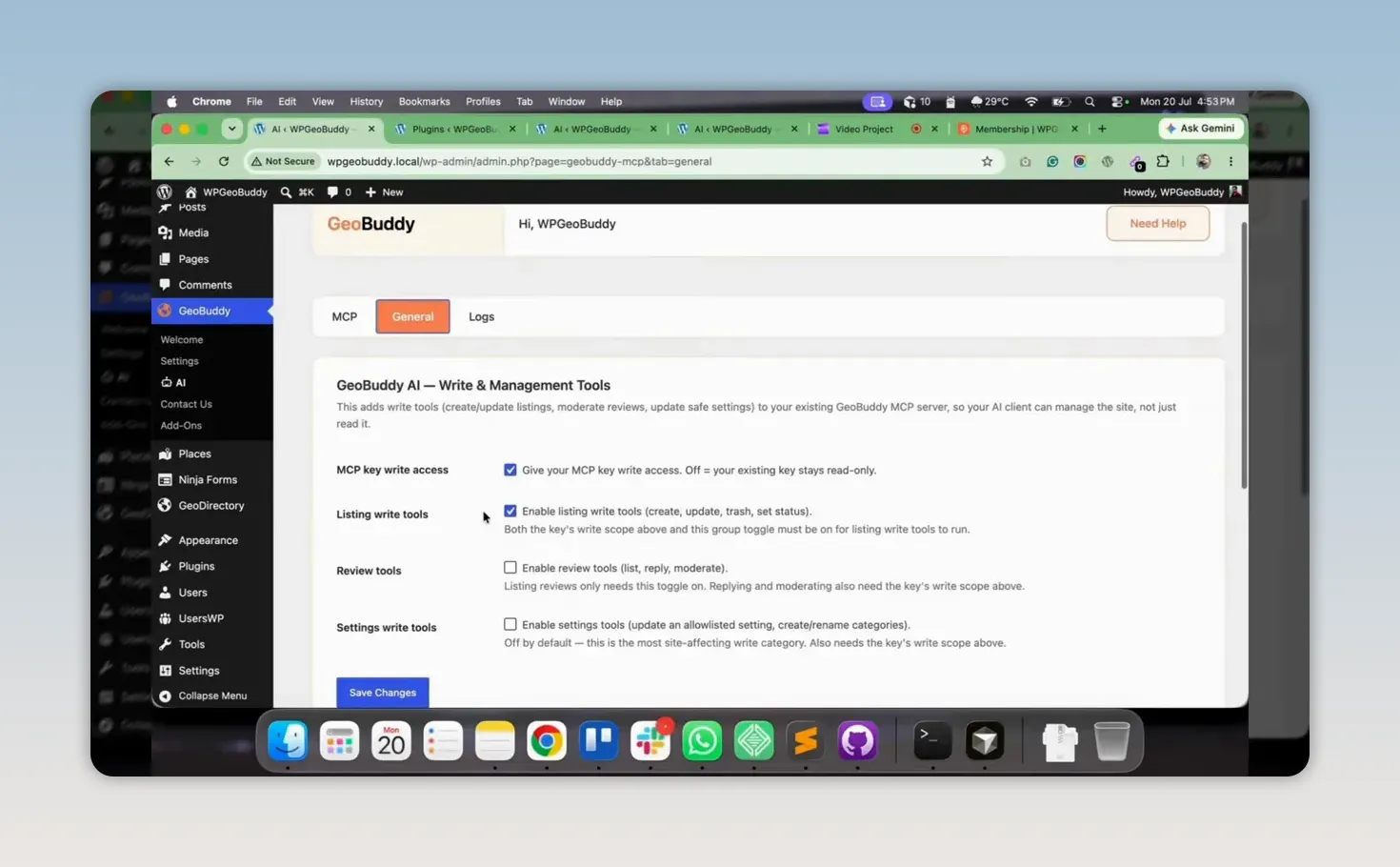
Write access should be deliberately enabled inside the GeoBuddy AI settings. After activating the premium add-on, additional settings tabs are available for general settings and logs.
In the general settings, the important controls include:
- MCP write permissions, which allow the connected AI workflow to make changes.
- Listing write tools, which allow listing creation and management actions.
- Review controls, which can be enabled or disabled separately.
Enable the required options and save the changes before attempting to create, change, trash, or delete listings.
Managing Listings with GeoBuddy AI
Now that you have GeoBuddy AI activated, let’s explore how to manage your GeoDirectory listings effectively. We’ll cover creating, updating, and deleting listings using simple AI prompts.
Creating New Listings
Creating a new listing is as easy as sending a message to your local AI agent. Here’s how:
- Open your AI agent dashboard.
- Type a command to create a new listing. For example, “Add a listing named Testing GeoBuddy AI.”
- Your AI agent will automatically fill in the required fields such as title, description, category, and more.
Once the listing is created, you’ll receive confirmation along with the listing ID and status.
Updating Existing Listings
Updating listings is just as straightforward. You can change the status of a listing or edit its details with a simple command. For instance:
- To publish a draft listing, type: “Publish the Franklin Square listing.”
- To move a listing to drafts, type: “Draft the Sampan listing.”
Your AI agent will handle the rest, ensuring your listings are always up-to-date.
Deleting Listings
When it comes to managing your directory, you may need to delete listings that are no longer relevant. Here’s how to do it:
- To move a listing to the trash, type: “Move the Sampan listing to trash.”
- To permanently delete a listing, type: “Permanently delete the Sampan listing.”

GeoBuddy AI will execute these commands, ensuring your directory remains clean and organized.
Use activity logs to audit listing changes
The Logs tab provides a detailed activity log of your listing management actions. You can see:
- Which user accessed the listing tools
- The result of each action (success or failure)
- The time each action was executed
This feature is essential for tracking changes and ensuring accountability in your directory management.
Maximizing Your Workflow with AI Automation
By integrating AI into your GeoDirectory management, you can significantly enhance your workflow. Here are some tips to maximize efficiency:
- Utilize AI prompts for repetitive tasks.
- Regularly review your logs to identify areas for improvement.
- Stay updated with new features and add-ons through your membership.
Automation not only saves time but also allows you to focus on growing your directory and serving your users better.
Watch Video
Managing your GeoDirectory listings doesn’t have to be a daunting task. With GeoBuddy AI, you can automate the entire process, from creating new listings to updating and deleting them. This premium add-on is designed to streamline your workflow and save you valuable time.
If you have any questions or need assistance with your GeoDirectory website, don’t hesitate to book a FREE 30-minute consultation call with our experts. We’re here to help you succeed!
Frequently asked questions
Can AI create GeoDirectory listings?
Yes. With GeoBuddy AI activated and listing write tools enabled, an MCP-connected AI agent can create GeoDirectory listings using required fields such as title, description, and category.
Can AI publish a GeoDirectory draft listing?
Yes. Listing status can be changed through an AI request, including publishing a draft listing or moving an existing listing back to draft.
Can AI delete GeoDirectory listings?
Yes. The workflow supports moving listings to trash and permanently deleting them. These should be treated as separate actions because trashing does not permanently remove the entry.
Can I see a record of AI listing actions?
Yes. GeoBuddy AI includes logs that record listing-tool activity, including the user, result, and execution time.
Do I need to allow MCP write access?
Yes. MCP write permissions and listing write tools must be enabled for an AI agent to create or manage GeoDirectory listings. Without those settings, the connection can be used for information access rather than directory changes.
Need expert help?
Build your GeoDirectory site with confidence
Get a free consultation from our GeoDirectory specialists.


