

GeoDirectory Review Management with GeoBuddy AI
Managing customer reviews is an important part of running a WordPress directory website. With GeoBuddy AI connected to a local AI agent such as Cursor, you can list listing reviews, reply to them, and moderate their status through simple natural-language requests.
This workflow uses the GeoDirectory AI premium add-on and its MCP connection, giving you a practical way to manage review activity without handling every action manually inside the WordPress admin.
What You Can Do With the GeoDirectory AI Review Tool
Once the review tool is enabled, GeoBuddy AI makes three review-management actions available through your connected local AI agent:
- List reviews across your GeoDirectory website listings.
- Reply to reviews by selecting the correct review ID and providing your response.
- Moderate reviews by changing a review status, such as moving it from approved to spam or approving it again.
This is especially useful when you need a quick overview of review activity, want to respond to customer feedback, or need to keep spam and unsuitable comments under control.
Enable Review Management in GeoDirectory AI
Before using review actions in Cursor, open your GeoDirectory AI settings and go to the General tab. Enable the Review Tool.
After enabling it, go to the MCP tab. The review-related tools become available there, including the options for listing reviews, replying to reviews, and moderating review status.
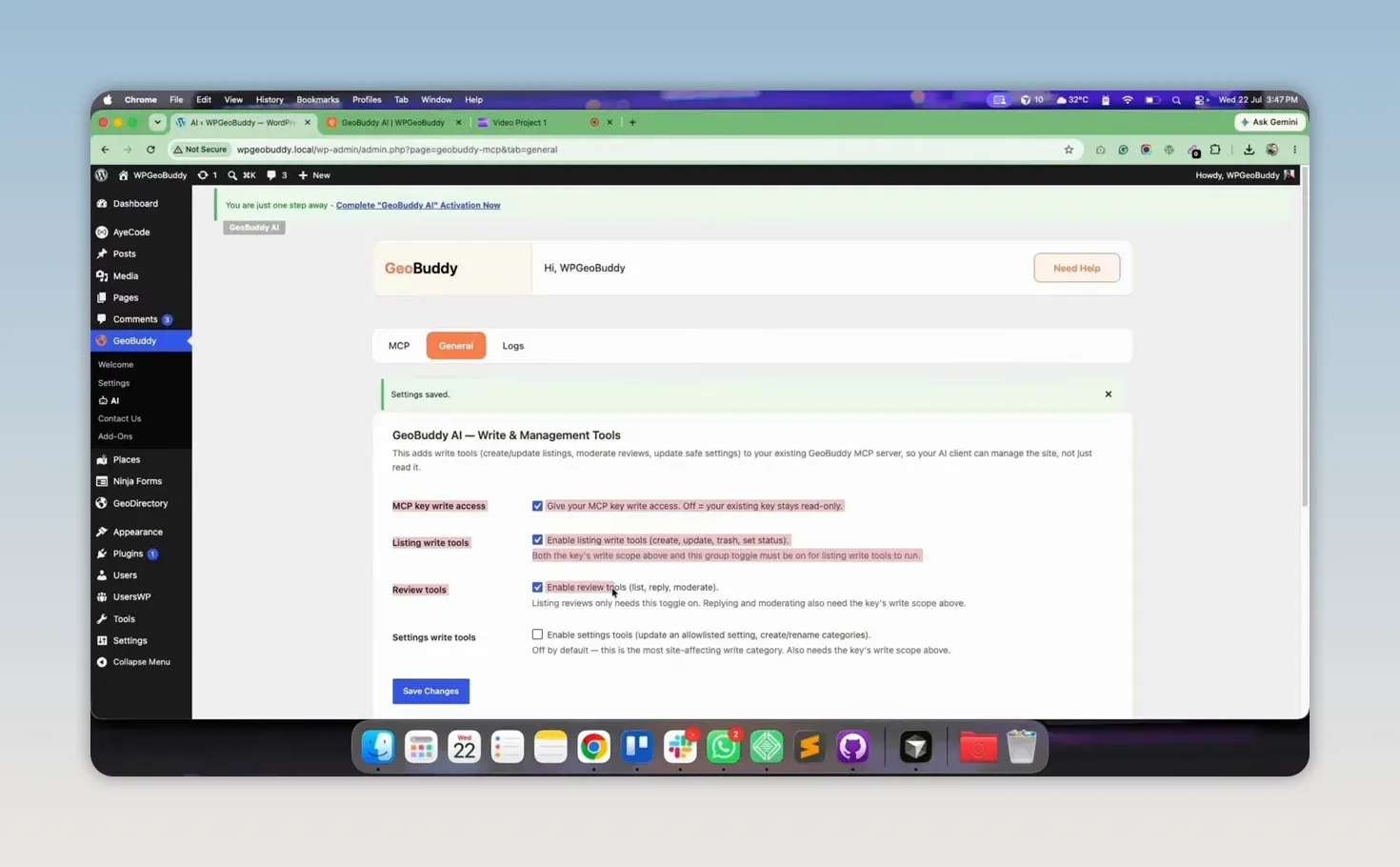
For reply and moderation actions, make sure your MCP key has the correct write permissions. Listing reviews only retrieves information, while replying and changing a review status require permission to make changes.
Your local AI agent must also already be connected to the GeoDirectory AI MCP server. If you still need to create that connection, follow the GeoBuddy AI local client connection guide first.
Ask Cursor How the Review Tools Work
When your MCP connection is ready, you can ask Cursor for guidance directly. A useful starting request is:
“How do I use the GeoDirectory AI review management tool? “
The agent can identify the available review actions and explain the requirements. The key point is simple: enable the Reviews group in GeoDirectory AI and ensure the MCP key has write scope if you plan to reply to reviews or moderate them.
How to List Reviews for Your GeoDirectory Listings
The first task is to retrieve the reviews already attached to your directory listings. Ask your local AI agent:
“Please list all GeoDirectory website listing reviews.”
GeoBuddy AI returns the available reviews along with useful details, including the total number of reviews, their IDs, their related listing information, and their moderation statuses.
In the example workflow, the directory contained four reviews. Two had a pending status and two were approved. This gives you a quick review queue before you decide whether to reply or moderate a specific item.
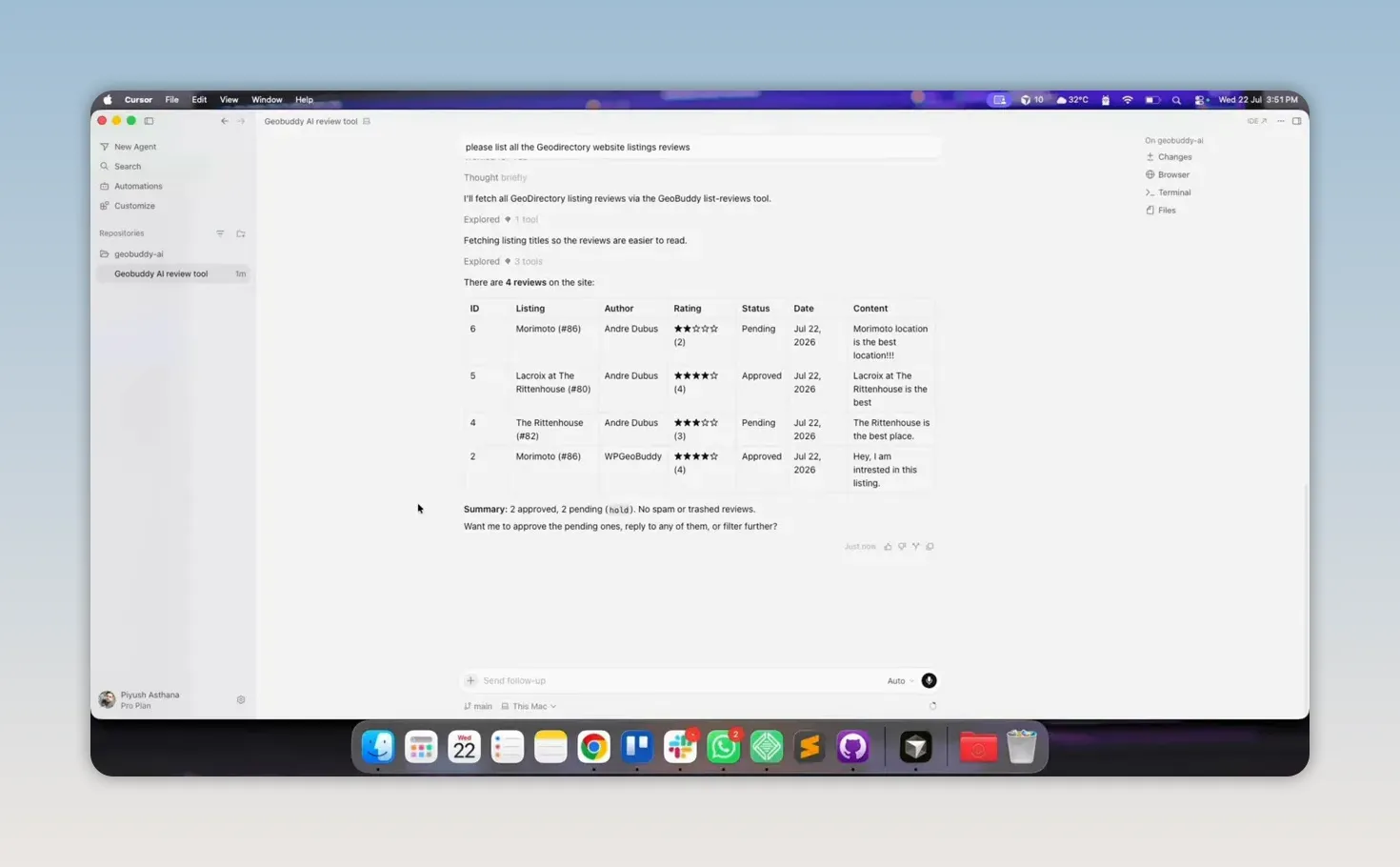
Always note the review ID before requesting an action. The ID is what lets the local AI agent target the correct review precisely.
How to Reply to a Listing Review
Once you have listed the reviews, select the review you want to answer and use its review ID in your request. For example:
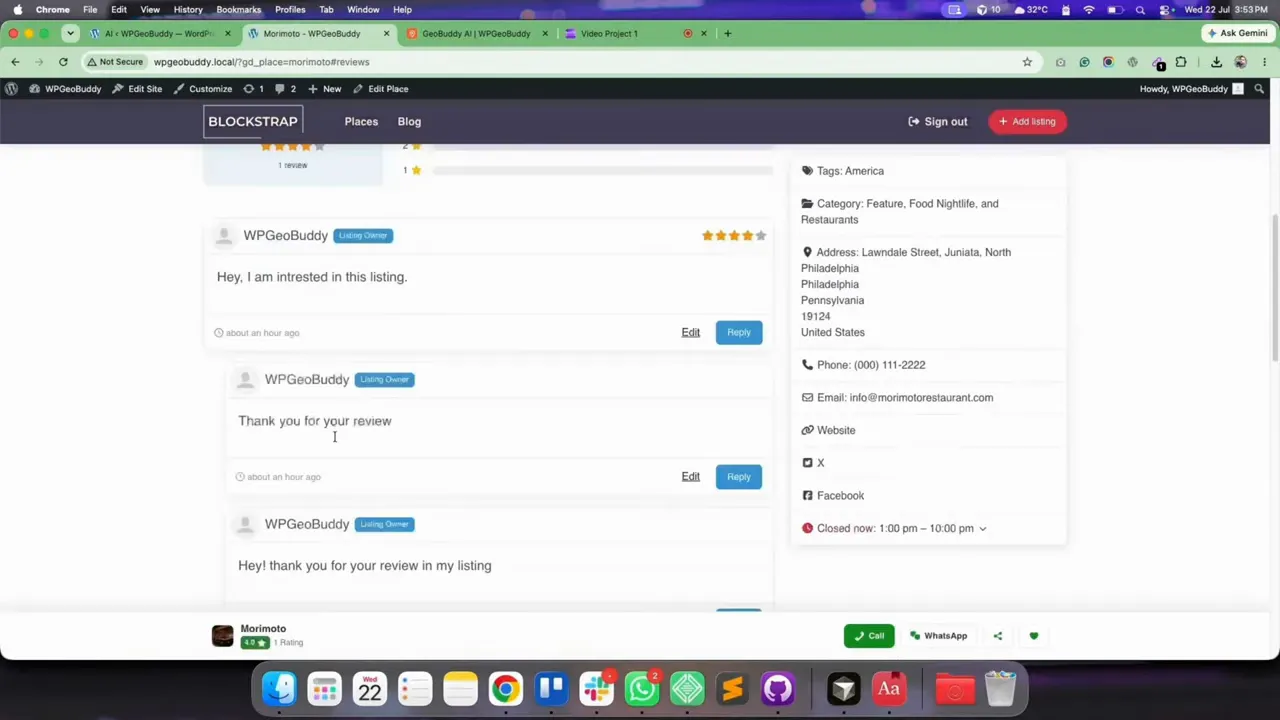
“Please reply to review ID 2: Hey, thank you for your review on my listing.”
The review ID tells GeoBuddy AI which customer review should receive the response. The rest of the request is the reply text that will be added to that listing review.
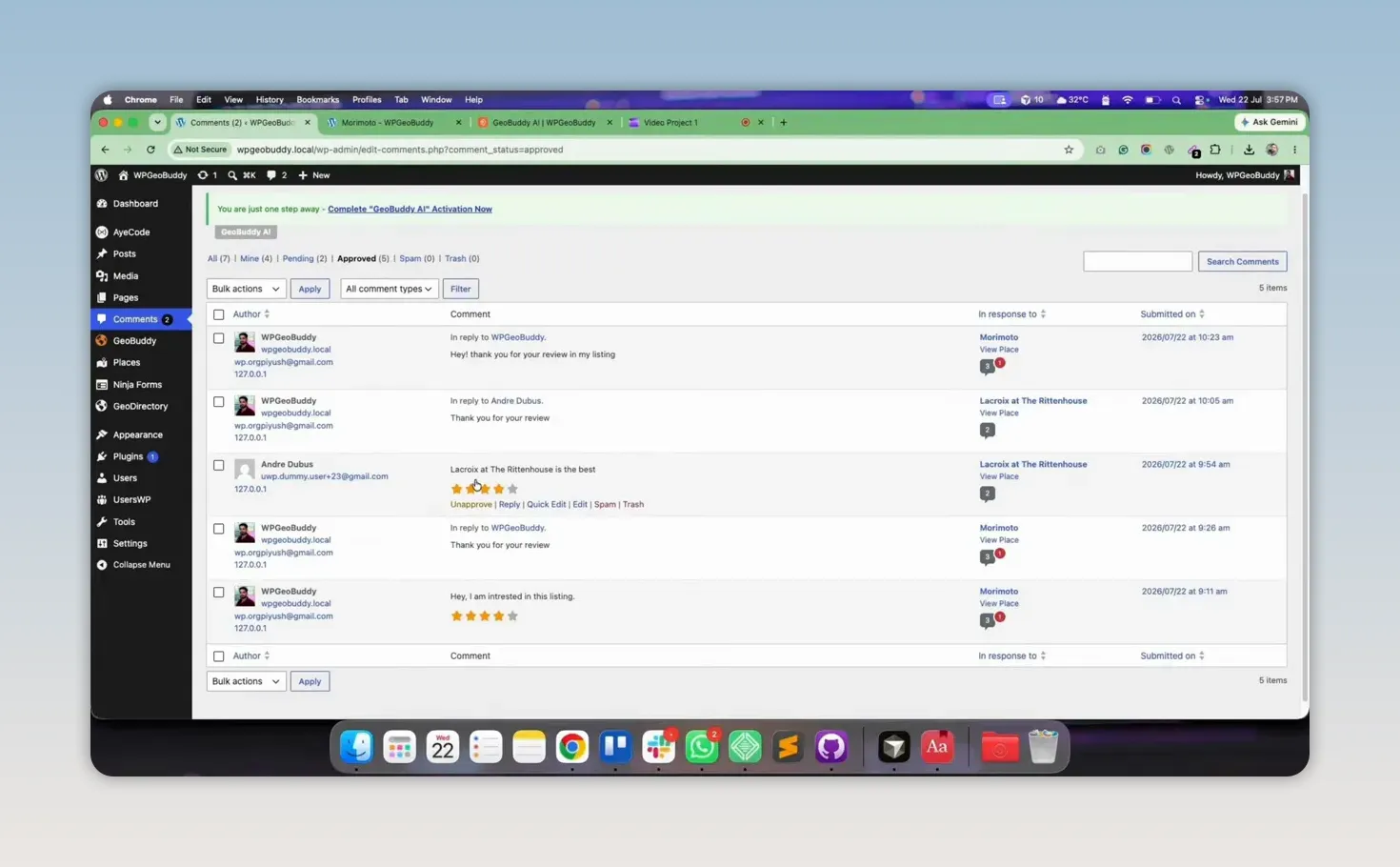
In this example, review ID 2 belonged to the Morimoto listing. After the request was completed, the response appeared underneath the review on the listing page.
Use Clear and Relevant Review Replies
A review reply should be specific to the customer feedback and the listing. Include the review ID every time, then write the exact message you want to publish. This keeps the instruction clear and helps prevent replies from being added to the wrong review.
How to Moderate Reviews With Cursor
Review moderation works by changing the status of a selected review. This is useful for handling spam, restoring a valid review, and maintaining the quality of review content on your directory website.
For example, if review ID 5 is currently approved and needs to be marked as spam, ask:
” Please change the status of review ID 5 from approved to spam.“
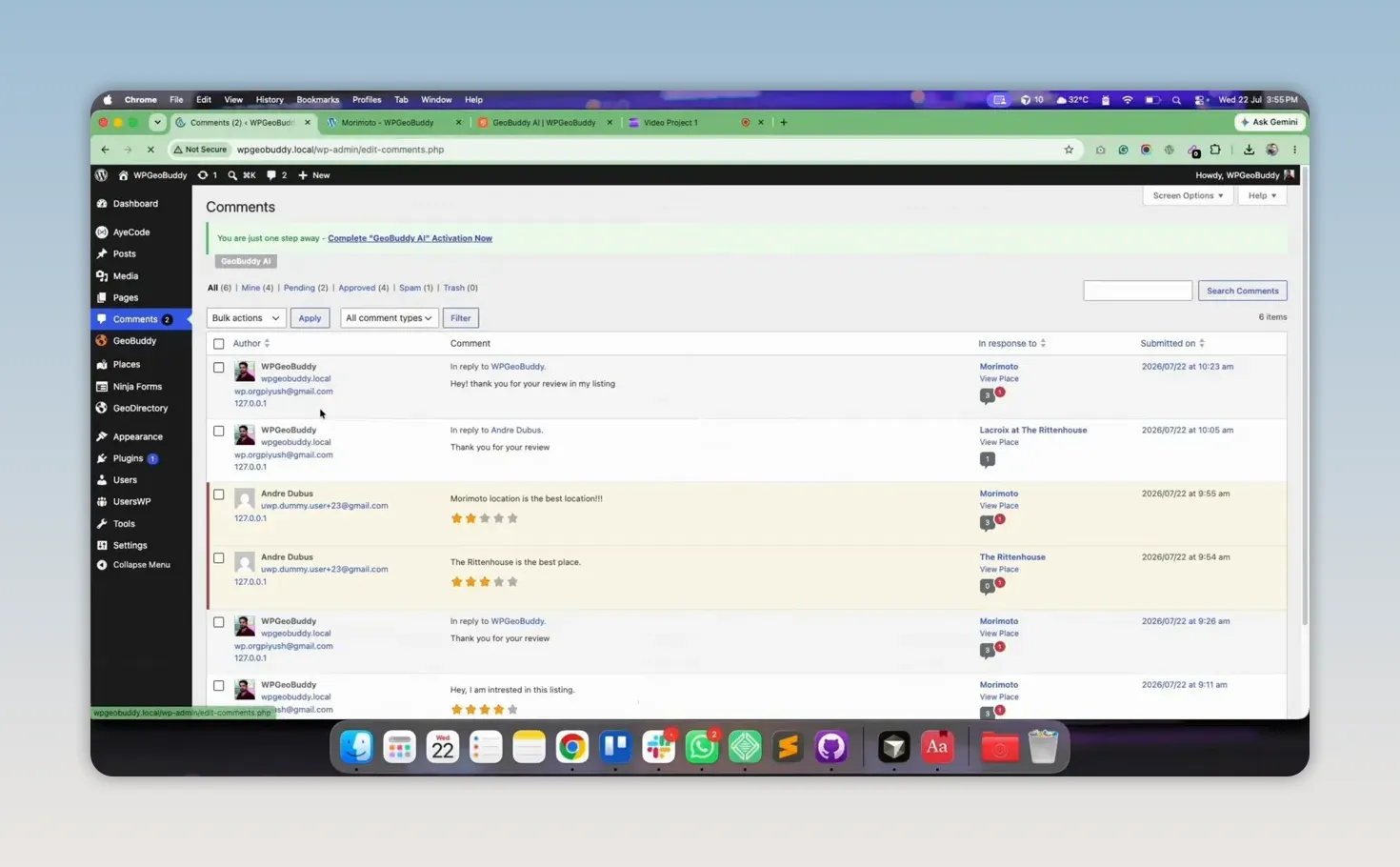
GeoBuddy AI updates the status through the connected local AI agent. The review is then removed from the approved review display and placed in the spam section of WordPress comments.
Restore a Review From Spam to Approved
Moderation is reversible. If a review was marked as spam by mistake, you can approve it again with another clear instruction:
” Please change the status of review ID 5 from spam to approved.“
After the action is completed, the review returns to the listing page. You can also confirm the change in WordPress admin: the spam section no longer contains that review, and the approved comments area includes review ID 5 again.
Watch Full Video
Get GeoBuddy AI for Your Directory Website
GeoBuddy AI is available with single-site, five-site, and unlimited-site license options. You can get GeoBuddy AI for your GeoDirectory website and use its AI-powered management tools for listing and review workflows.
A WPGeoBuddy membership starts at $99 per year and includes 10 premium add-ons, along with future add-ons.
Need Help Building a GeoDirectory Website?
If you need support with a directory website project, including GeoDirectory development or setup guidance, you can book a free 30-minute GeoDirectory consultation with the team.
Need expert help?
Build your GeoDirectory site with confidence
Get a free consultation from our GeoDirectory specialists.


