

Protect GeoDirectory Contact Details From Bots and Scrapers With GeoBuddy Contact Guard
Directory listings often contain valuable contact details such as phone numbers, email addresses, websites, and social profiles. Publishing those details openly makes them easy for legitimate customers to use, but it can also make them easier for automated bots and data scrapers to collect.
GeoBuddy Contact Guard is a GeoDirectory add-on designed to hide selected listing contact fields behind a reveal button. Site owners can decide which fields need protection, whether logged-out visitors must sign in before access, and how the reveal button and confirmation pop-up look.
What Is GeoBuddy Contact Guard?
GeoBuddy Contact Guard is a WordPress add-on for GeoDirectory websites that protects chosen custom contact fields on directory listings. Instead of displaying a phone number or email address directly on the listing page, it presents a button such as Show Phone. The contact information is revealed only after the visitor interacts with that button.
This approach helps reduce the immediate exposure of contact information to automated harvesting while preserving a straightforward path for genuine users who want to contact a listing owner.
Contact fields that can be protected
Contact Guard can be enabled on custom fields across GeoDirectory post types. Depending on the fields configured for a listing type, this includes:
- Phone numbers
- Email addresses
- Website links
- Twitter fields
- Facebook fields
For example, a job directory could protect a recruiter’s phone number and email while leaving the job description, category, and location publicly available.
Who Should Use a Contact Guard for Directory Listings?
Contact protection is particularly useful when a directory collects information that listing owners do not want widely copied or republished. Common use cases include:
- Business directories: Limit easy harvesting of business phone numbers and email addresses.
- Job boards: Protect employer and recruiter contact details.
- Service marketplaces: Give members more control over when their contact information is revealed.
- Professional directories: Reduce direct exposure of private practice or consultant contact details.
- Member directories: Require authentication before showing member contact information.
Contact Guard is not a replacement for broader WordPress security, spam prevention, or access-control practices. Its specific role is protecting selected GeoDirectory listing fields through a controlled reveal experience.
How to Install GeoBuddy Contact Guard
Install the add-on through the WordPress admin area in the same way as other uploaded plugins:
- Download the GeoBuddy Contact Guard plugin ZIP file.
- In WordPress, go to Plugins and choose Add New Plugin.
- Upload the plugin ZIP file.
- Install and activate the plugin.
- Open the GeoDirectory settings area to access the Contact Guard settings.
If the plugin does not appear after activation, first confirm that GeoDirectory is installed and active. Contact Guard is built to work with GeoDirectory listing post types and custom fields.
For general guidance on plugin installation, see the WordPress plugin management documentation.
How to Enable Contact Guard on a GeoDirectory Custom Field
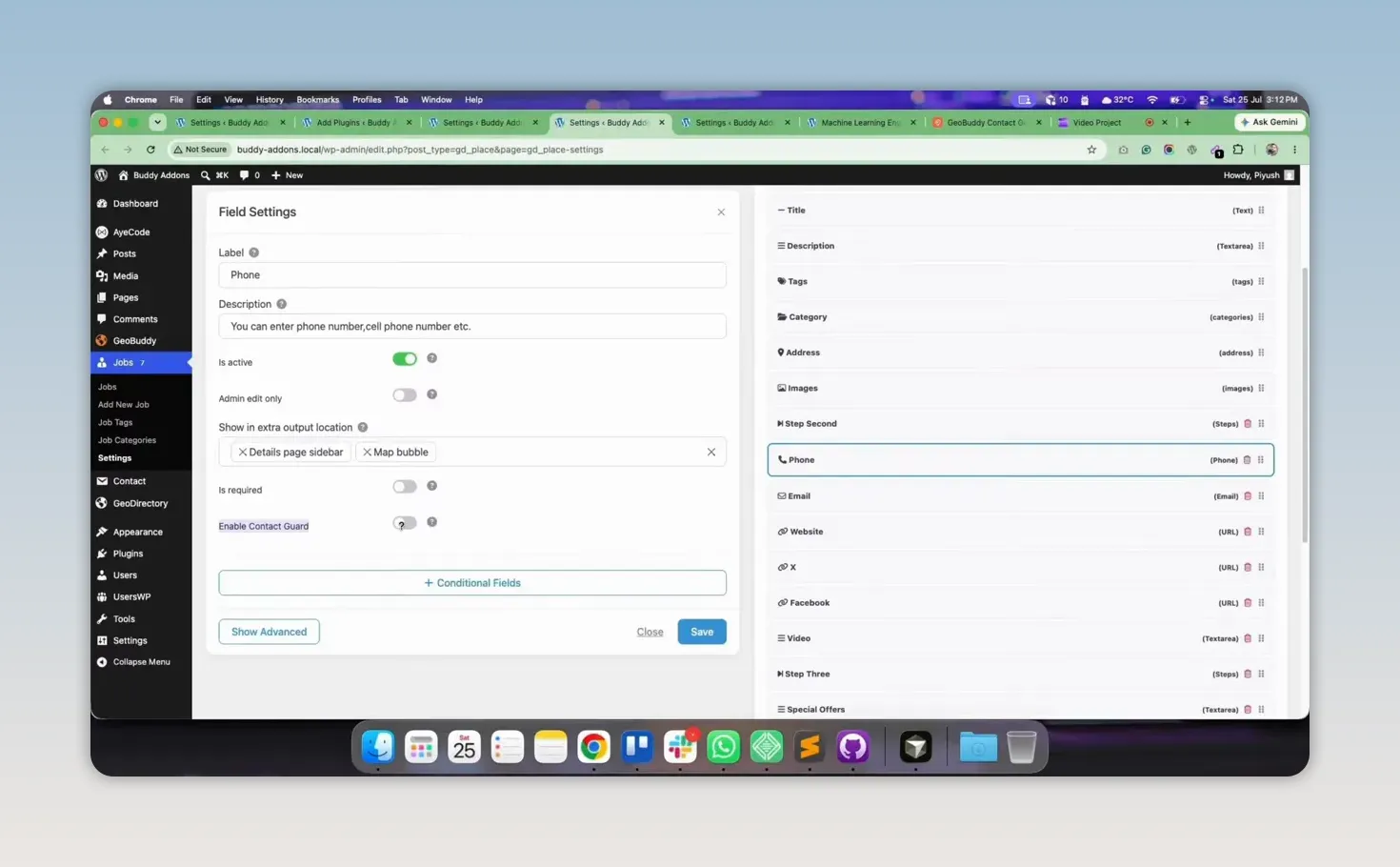
Protection is configured at the individual custom-field level. That means you can protect a phone number but leave another field visible, or apply the guard to several contact fields within the same post type.
- Open the relevant GeoDirectory post type.
- Go to its Custom Fields settings.
- Select the contact field you want to protect, such as Phone or Email.
- Enable the Contact Guard option for that field.
- Optionally change the label displayed on the reveal button.
- Save the field settings.
- Repeat the process for other sensitive contact fields.
Once enabled, the direct field value is replaced on the listing front end with the selected reveal button. A phone field, for instance, can appear as a Show Phone button rather than a visible number.
Choose clear button labels
The field-level button label should tell visitors exactly what will happen. Use labels that match the contact method, such as:
- Show Phone
- Reveal Email
- View Website
- Show Facebook Profile
Specific labels improve clarity, especially when a listing contains more than one protected field.
Set Access Rules for Logged-In and Logged-Out Users
Contact Guard includes access-control settings that determine how the reveal process works for different visitor states. The key decision is whether a visitor must log in before protected information can be shown.
Require login before revealing contact details
When the login requirement is enabled, logged-out visitors who select a protected contact button are asked to log in before they can access the contact information. This is useful for directories where contact data is a member benefit or where site owners want to add a meaningful access barrier.
Potential examples include private member directories, job sites with registered candidates, and professional networks that require accounts to make contact.
Allow logged-out visitors to reveal details
If the login requirement is disabled, logged-out visitors can select the reveal button and see the protected contact information without signing in. The field is still presented through the Contact Guard interaction rather than displayed immediately.
This option may suit public business directories that want to keep the contact path easy for customers while avoiding fully exposed contact values on the listing page.
Decide how logged-in users should be treated
The settings also let you control whether the guard applies to logged-in users. When the guard is disabled for logged-in users, authenticated users can see contact information immediately. When it remains active, logged-in users use the same reveal interaction as other permitted users.
A practical setup is:
- Public visitors: Reveal button, with or without a login requirement.
- Logged-in members: Immediate access when membership is intended to provide convenience.
- Highly sensitive data: Login required before the information can be revealed.
Customize the Contact Guard Button
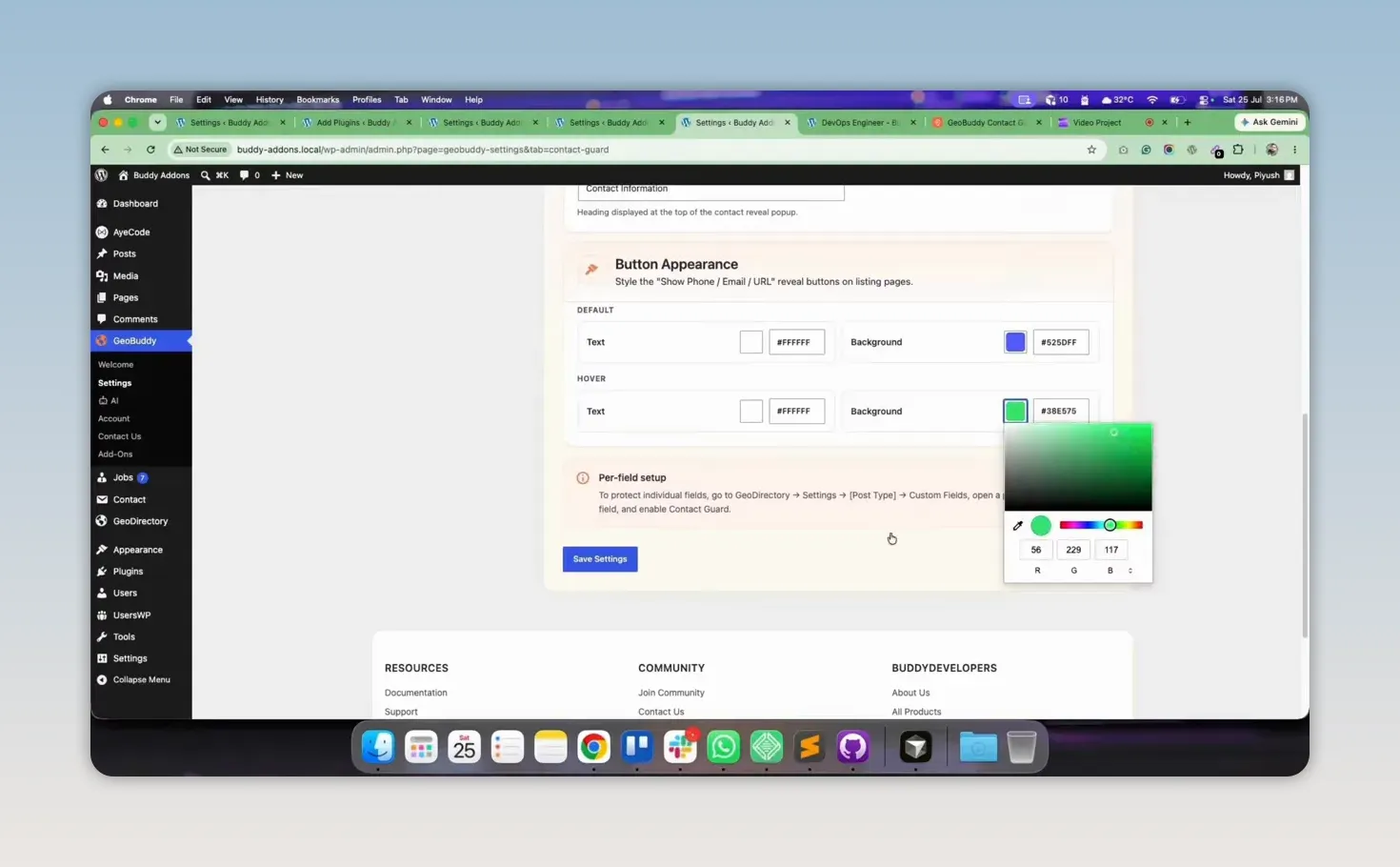
The reveal button should look like a deliberate part of the directory design. Contact Guard provides appearance controls for both normal and hover states.
You can adjust:
- Button text color
- Button background color
- Hover text color
- Hover background color
Use colors that align with the site’s existing calls to action, but keep contrast high enough for readability. Avoid styling the button so subtly that visitors mistake it for plain text or overlook it entirely.
Keep the reveal action easy to recognize
A protected contact field should not create confusion or unnecessary friction. Use a concise label, choose accessible color contrast, and ensure the button is placed where the original field would normally appear. If login is required, make that requirement clear through the resulting prompt and site messaging.
Customize the Contact Information Confirmation Pop-Up
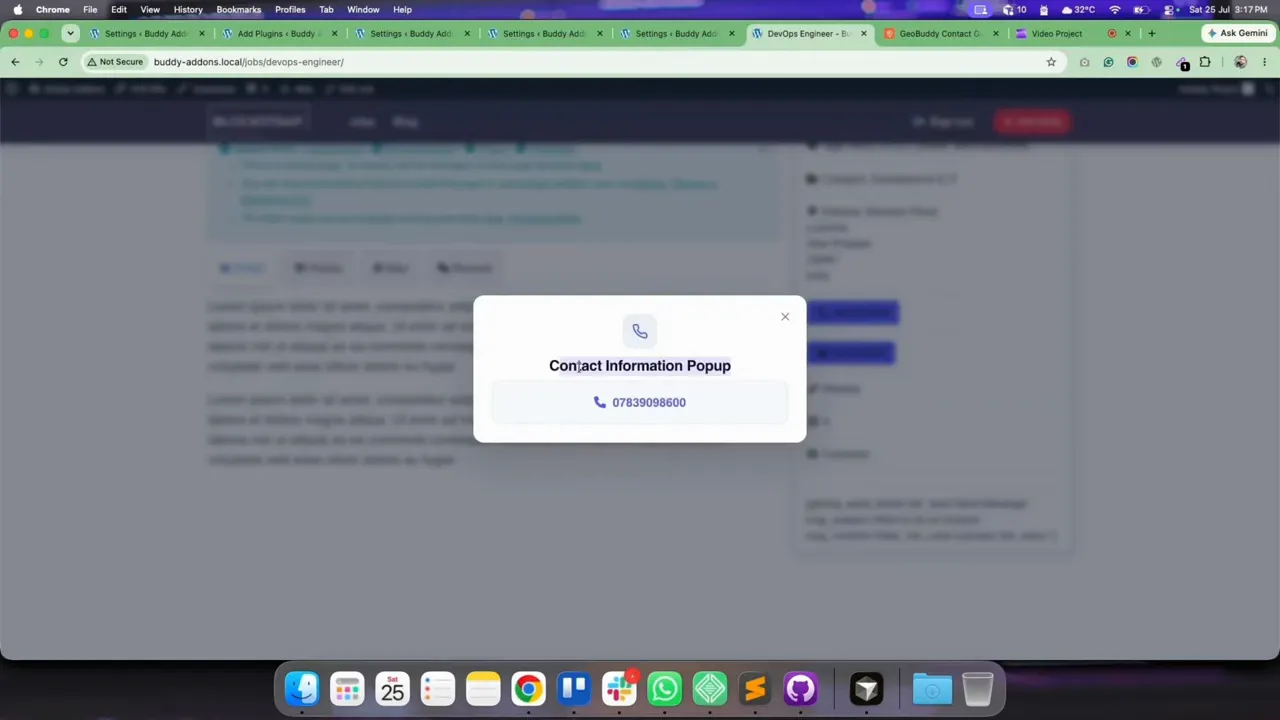
After a permitted user selects a protected contact field, Contact Guard can show a confirmation pop-up before revealing the information. The pop-up title and text can be customized in the add-on settings.
Customizing this message gives a directory owner a way to set expectations before contact details are displayed. The wording can be tailored to the directory’s purpose, provided it remains brief and clear.
Useful pop-up copy should explain the next step without adding unnecessary marketing language. For example, a directory might use a title that confirms the contact information is about to be displayed and supporting text that explains any relevant member or privacy expectations.
Recommended Contact Guard Configuration Checklist
Before enabling Contact Guard across a live directory, use this checklist to create a consistent experience:
- Identify every custom field that contains contact or social-profile information.
- Enable Contact Guard only on fields that need controlled disclosure.
- Set a clear reveal-button label for each field type.
- Choose whether logged-out users must sign in before access.
- Decide whether logged-in users should see details immediately or use the reveal action.
- Set normal and hover colors that match the site and remain readable.
- Write a concise confirmation pop-up title and message.
- Test a listing while logged in and while logged out.
- Test every protected field, including phone, email, website, and social fields where used.
Common Mistakes to Avoid
Protecting only one field when other contact details remain public
Guarding a phone number is less useful if the same listing displays an unprotected email address, website, or social account that exposes equivalent contact information. Review the complete custom-field set for each post type.
Using a vague button label
A label such as “Click Here” does not tell users what will be revealed. A direct label such as “Show Phone” or “Reveal Email” makes the interaction easier to understand.
Requiring login without testing the user journey
Login gating can be appropriate, but it adds a step. Confirm that the login page works properly and that the experience fits the directory’s business model. A public local business directory may need lower friction than a private professional network.
Forgetting to test logged-out behavior
Admin users are usually logged in while configuring a site. Always test in a logged-out browser session to confirm the login requirement and reveal flow behave as intended.
Ignoring button visibility and hover states
Custom colors can improve branding, but poor contrast can make a key action difficult to find or read. Check both the default and hover appearance on the front end after saving changes.
Watch Full Video
| Protect Your GeoDirectory Listing Contacts Configure GeoBuddy Contact Guard to control how phone, email, website, and social fields are revealed. Get Contact Guard |
Frequently Asked Questions
Does GeoBuddy Contact Guard work with all GeoDirectory post types?
Yes. Contact Guard works with GeoDirectory post types and can be enabled on the appropriate custom contact fields within each post type.
Can I protect phone and email fields separately?
Yes. Contact Guard is enabled per custom field, so you can protect a phone field, an email field, or several contact fields independently.
Can visitors reveal contact information without creating an account?
Yes. Disable the login requirement if you want logged-out visitors to reveal protected contact information without signing in.
Can logged-in users see contact details immediately?
Yes. The settings allow the guard to be disabled for logged-in users so authenticated users can view the contact information immediately.
Need expert help?
Build your GeoDirectory site with confidence
Get a free consultation from our GeoDirectory specialists.


